Understanding Cannibalization and How Scalenut Can Help
Managing SEO content across a growing website can be challenging—especially when multiple pages start targeting the same keyword or topic. This common issue, known as keyword cannibalization, can negatively impact your site’s search engine rankings, dilute authority, and lead to a poor user experience.
To help you tackle this head-on, Scalenut’s Cannibalization tool—part of the Traffic Analyzer module—automatically detects these conflicts, giving you the insights you need to resolve them efficiently and boost your organic performance.
What is Keyword Cannibalization?
Keyword cannibalization occurs when two or more pages on the same website compete for the same or similar keywords. While it may seem like targeting a keyword across multiple pages would improve your chances of ranking, it actually has the opposite effect.
Instead of reinforcing your content’s authority, you risk splitting your ranking potential across pages and confusing search engines like Google about which page to prioritize.
Why is Cannibalization a Problem?
When keyword cannibalization goes unchecked, it can lead to:
Keyword Confusion: Search engines struggle to determine which page is the most relevant, potentially lowering the rank of all competing pages.
Diluted Page Authority: SEO strength gets dispersed across several pages instead of consolidating into one strong, authoritative page.
Lower Rankings: Competing pages from the same site may all rank lower than a single, optimized page would.
Poor User Experience: Visitors may land on multiple pages covering the same topic, leading to confusion and a fragmented journey.
Wasted Crawl Budget: Google may spend unnecessary time indexing similar pages, affecting how often your important content is crawled.
How to Identify Keyword Cannibalization
Finding cannibalization issues involves a mix of manual techniques and automated tools. Here are some proven methods:
Run an SEO & Content Audit: Evaluate your content to spot overlaps in topics and keywords. Smaller websites may detect issues quickly, while larger sites benefit from automation.
Use Google Search Console & Scalenut’s Traffic Analyzer: Analyze keyword performance and history to detect multiple URLs ranking for the same term.
Google Search Method: Use the query site:yourdomain.com "topic" to find competing pages on your website.
Disable Host Clustering in Site Search: This gives you a clearer view of all your site’s ranking pages for a keyword, rather than just the top one.
Use Site Explorer Tools: If a keyword shows multiple URLs from your domain in SERPs, it’s likely a cannibalization issue.
Scalenut’s Cannibalization Tool
To simplify the process, Scalenut has introduced a Cannibalization detection feature inside the Traffic Analyzer. With just a few clicks, this tool identifies:
Keywords with multiple competing URLs
Which pages are involved in cannibalization
Potential actions to consolidate or reoptimize content
Where to Find It:
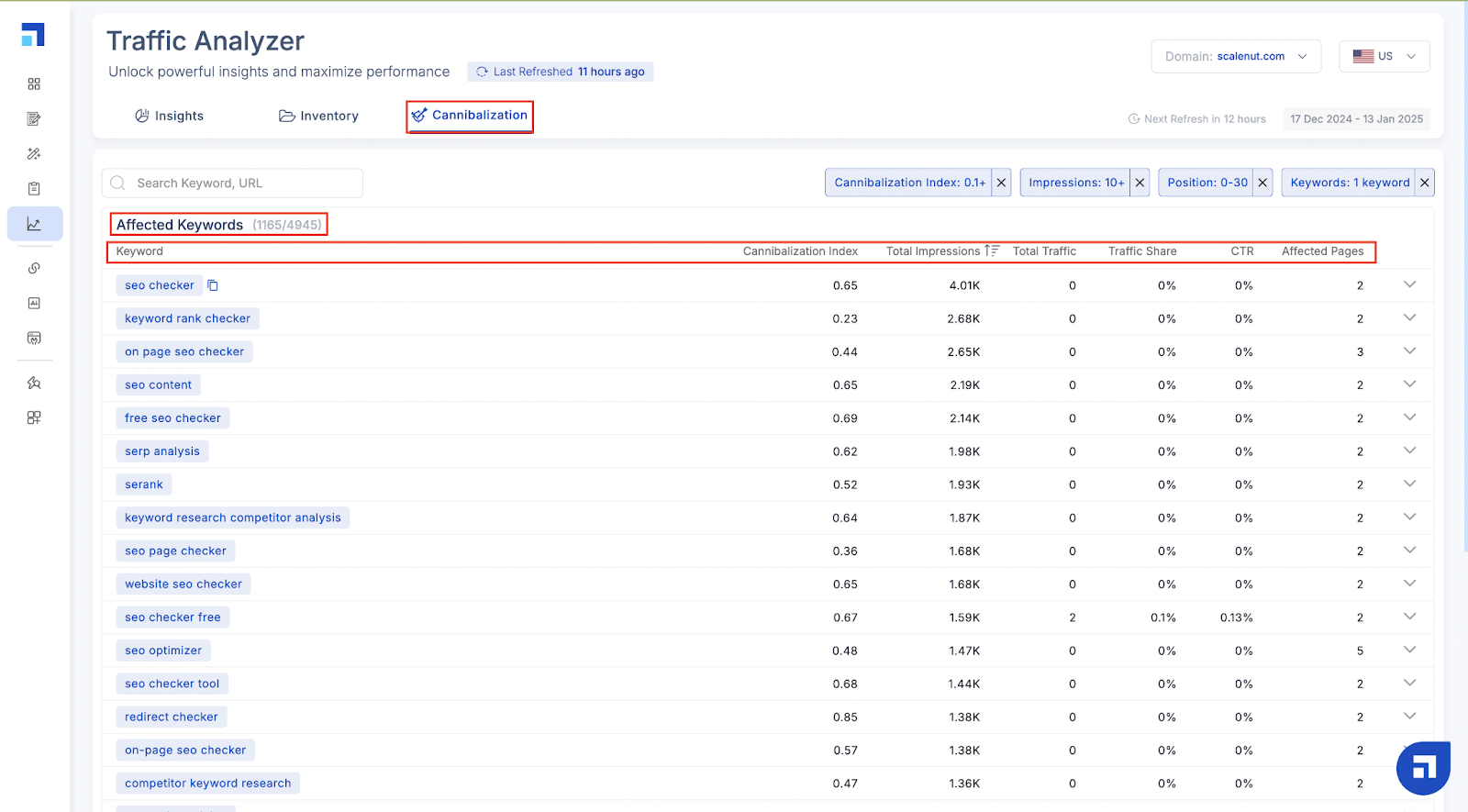
Go to Traffic Analyzer and select the ‘Cannibalization’ tab from the left-hand menu. The tool will automatically scan your connected Google Search Console data and display all instances of cannibalization across your site.
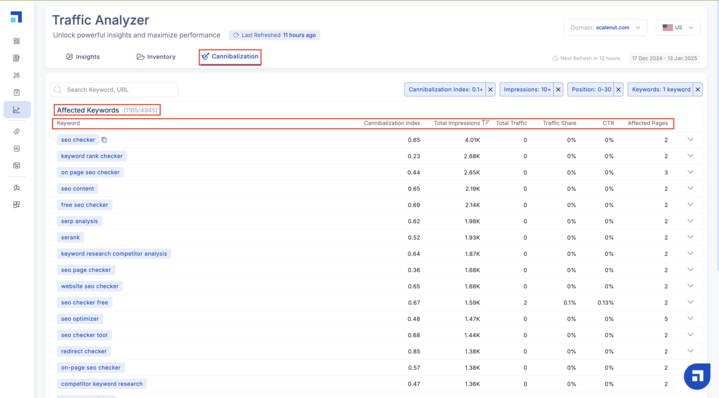
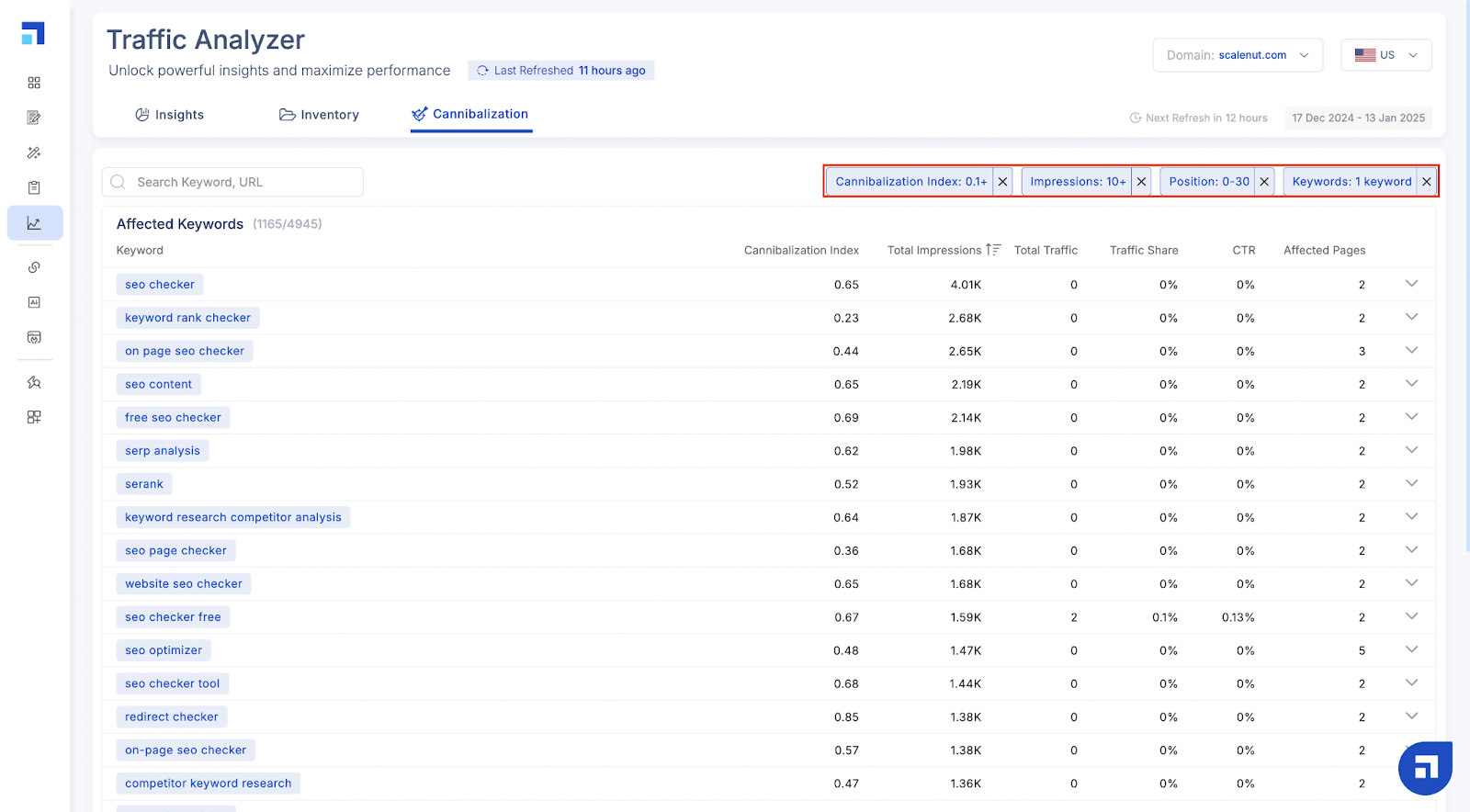
Here’s an overview of the Cannibalization tool -
Please note: The default filter is set. You can always remove that and filter out the data as per your preference, and turn it back on when needed
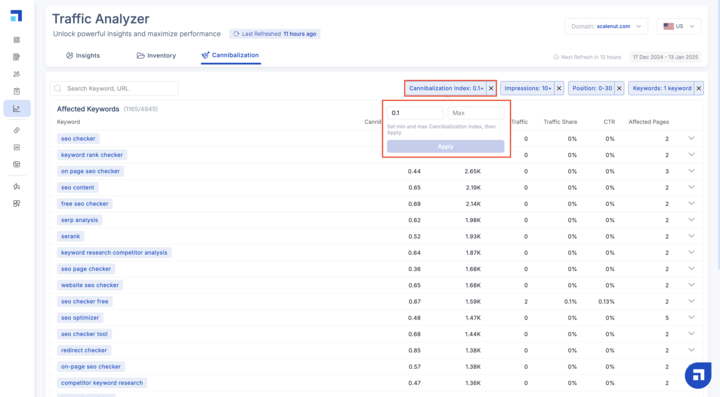
Cannibalization Index: It measures keyword competition by comparing a page’s top and second-top page impressions. Higher values show higher cannibalization.
To filter the cannibalization index, simply set a minimum and maximum value. Then click ‘Apply’.
You can repeat the same filter process of setting a minimum and maximum value for Impressions and Position.
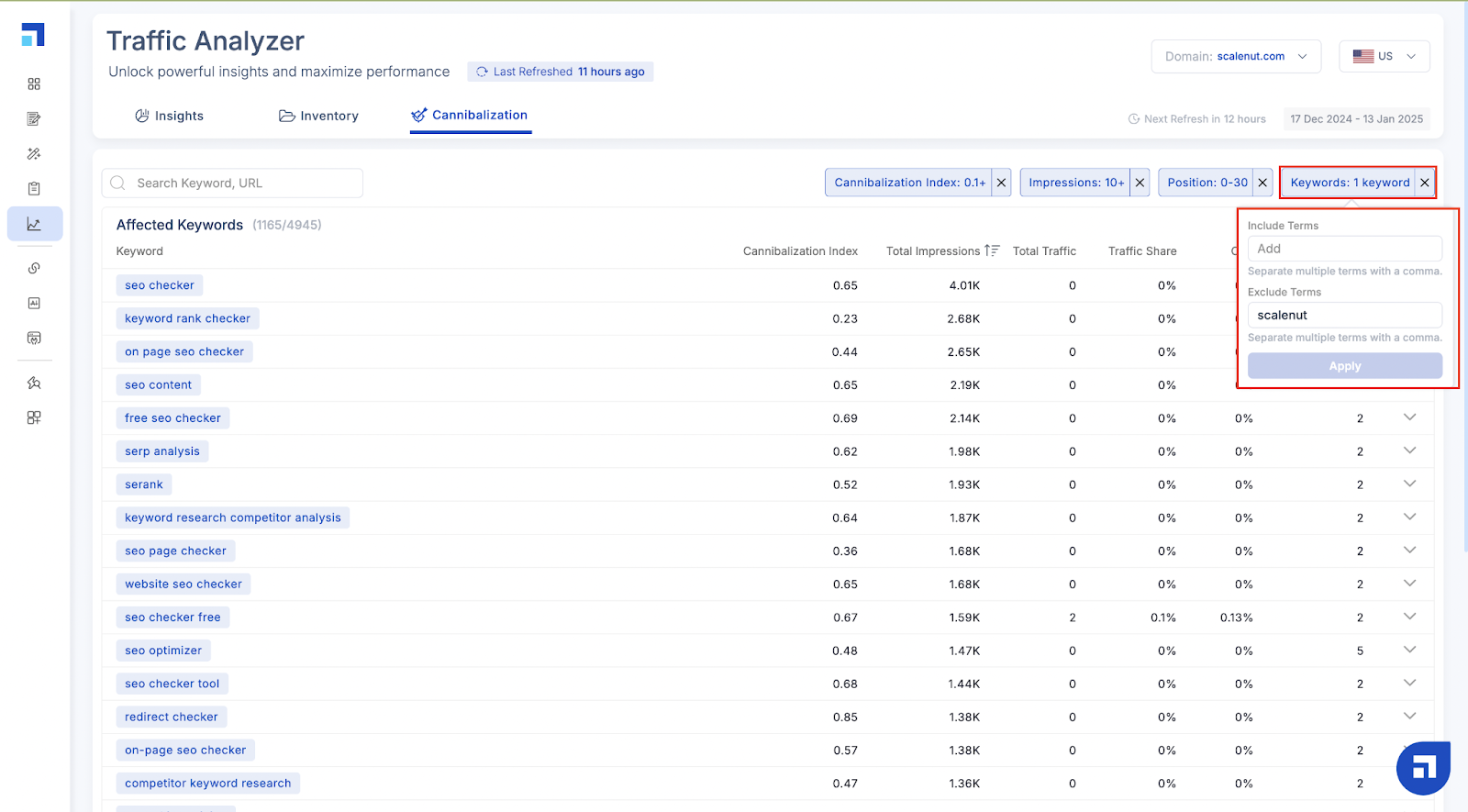
However, for Keywords, the process is slightly different - You can include and exclude the terms. For more than one keyword, simply put a comma in between. Then, click ‘apply’.
Let’s consider that you want to stick to the default filter.
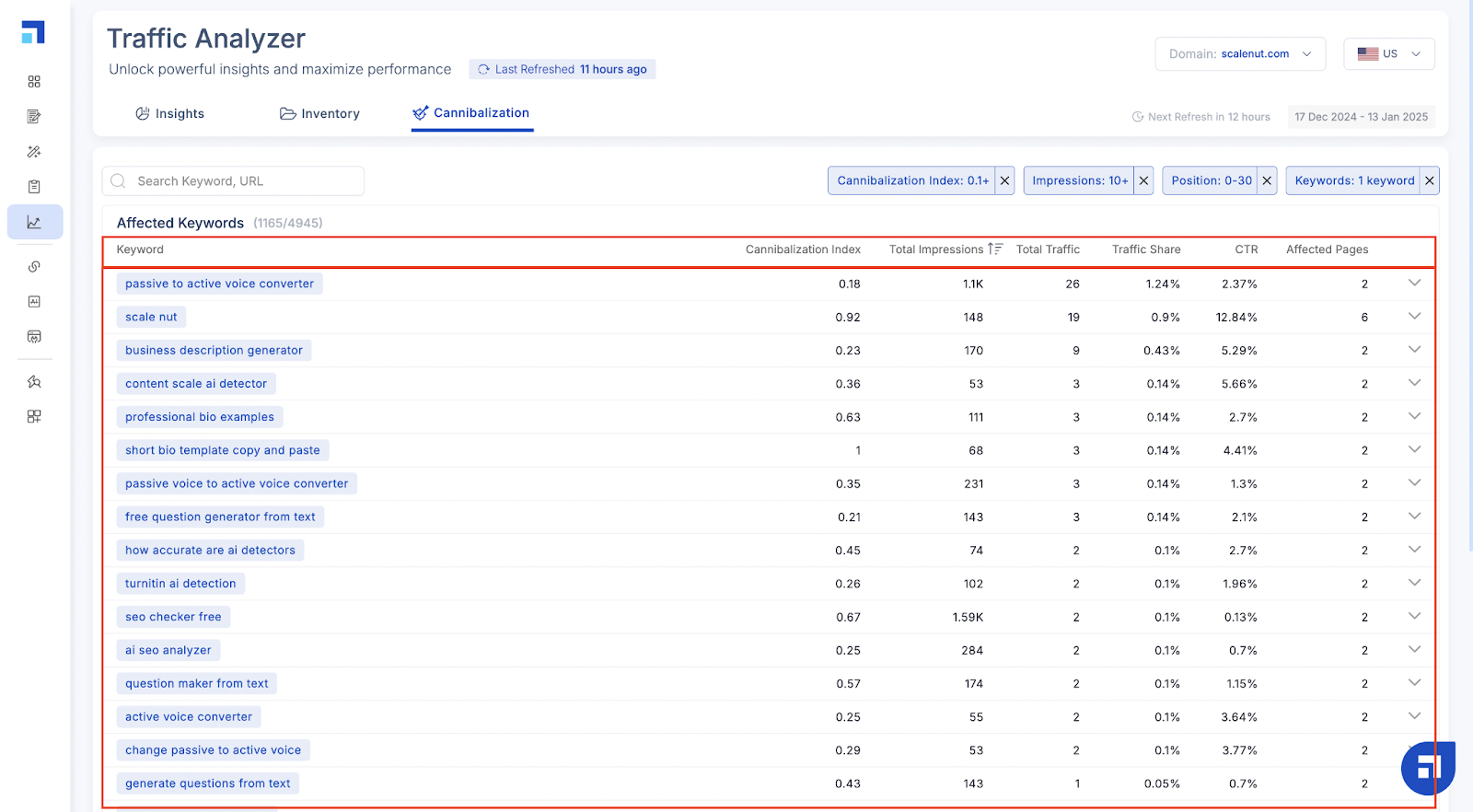
On the left side, you get to see the Affected Keywords.
The total number of affected keywords for your filter is given beside it.
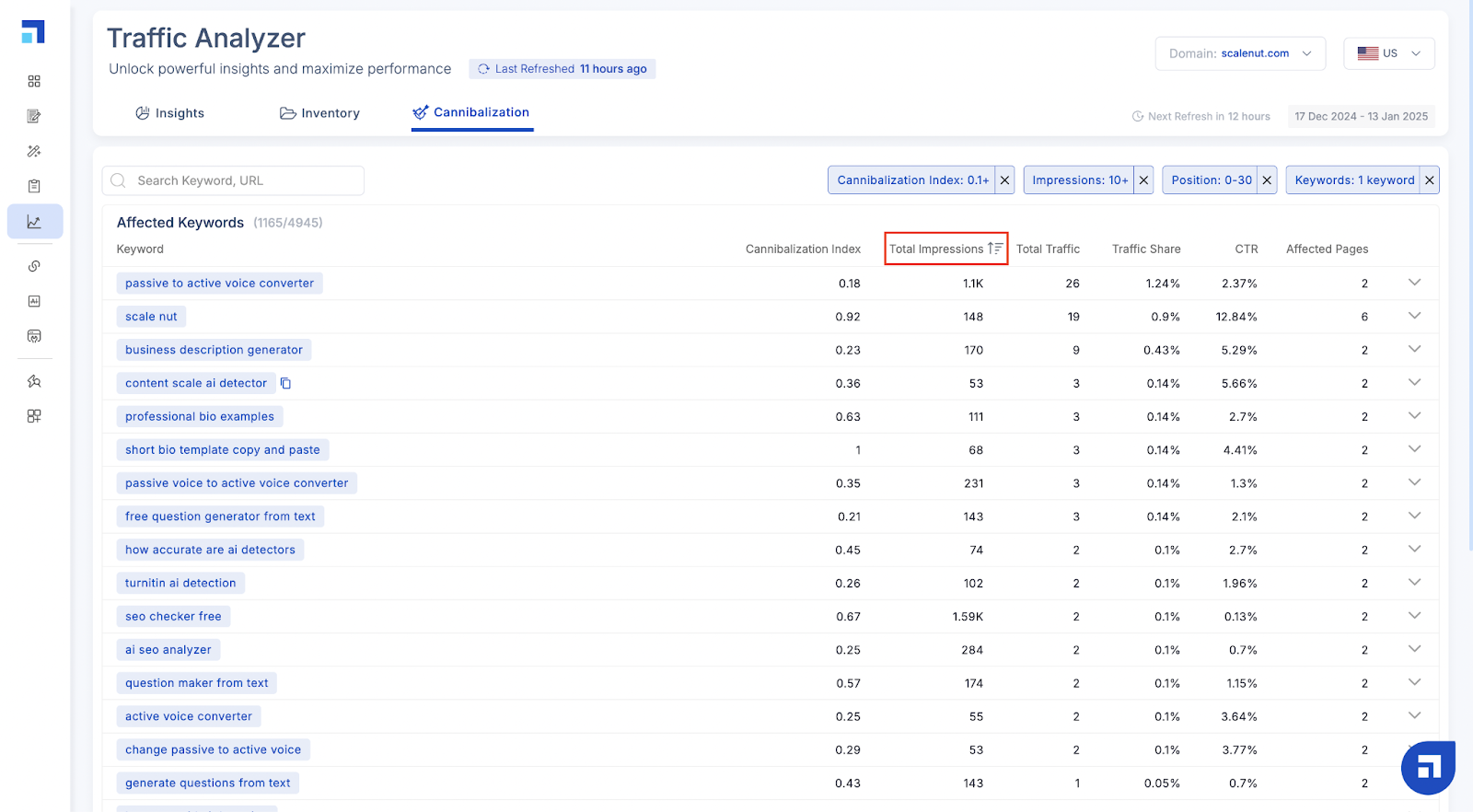
You can use the filter beside the ‘Total Impressions’ to sort the key terms; the default filter is sorted descending on impression.
The data of Cannibalization index, total impressions, Total Traffic, Traffic Share, CTR and Affected Pages of each keyword is given beside it.
Remember: The values are between 0-1.
1 means absolute cannibalization. You need to look at them.
0 means you can neglect them.
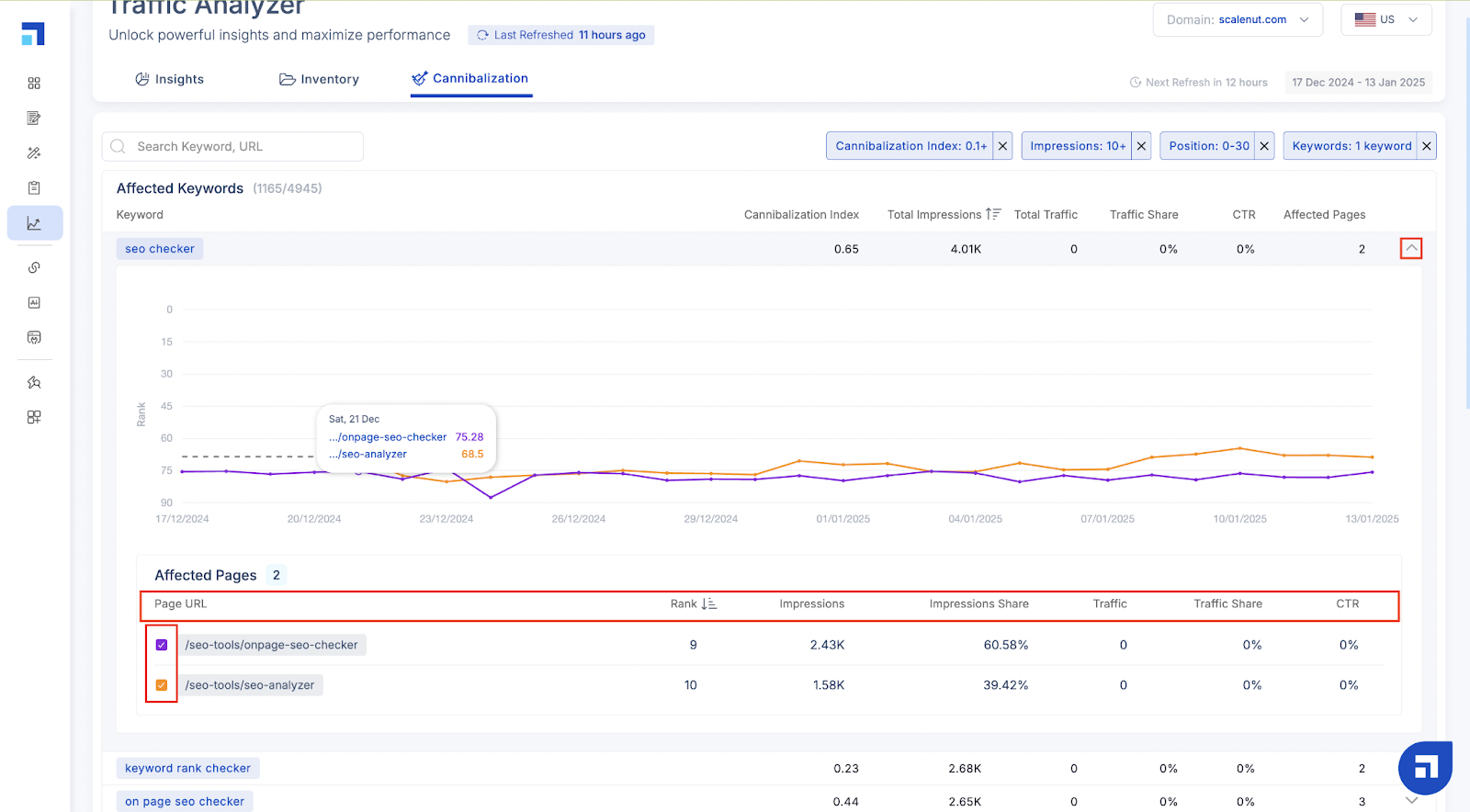
You can further expand the data by clicking on the ‘drop-down arrow’.
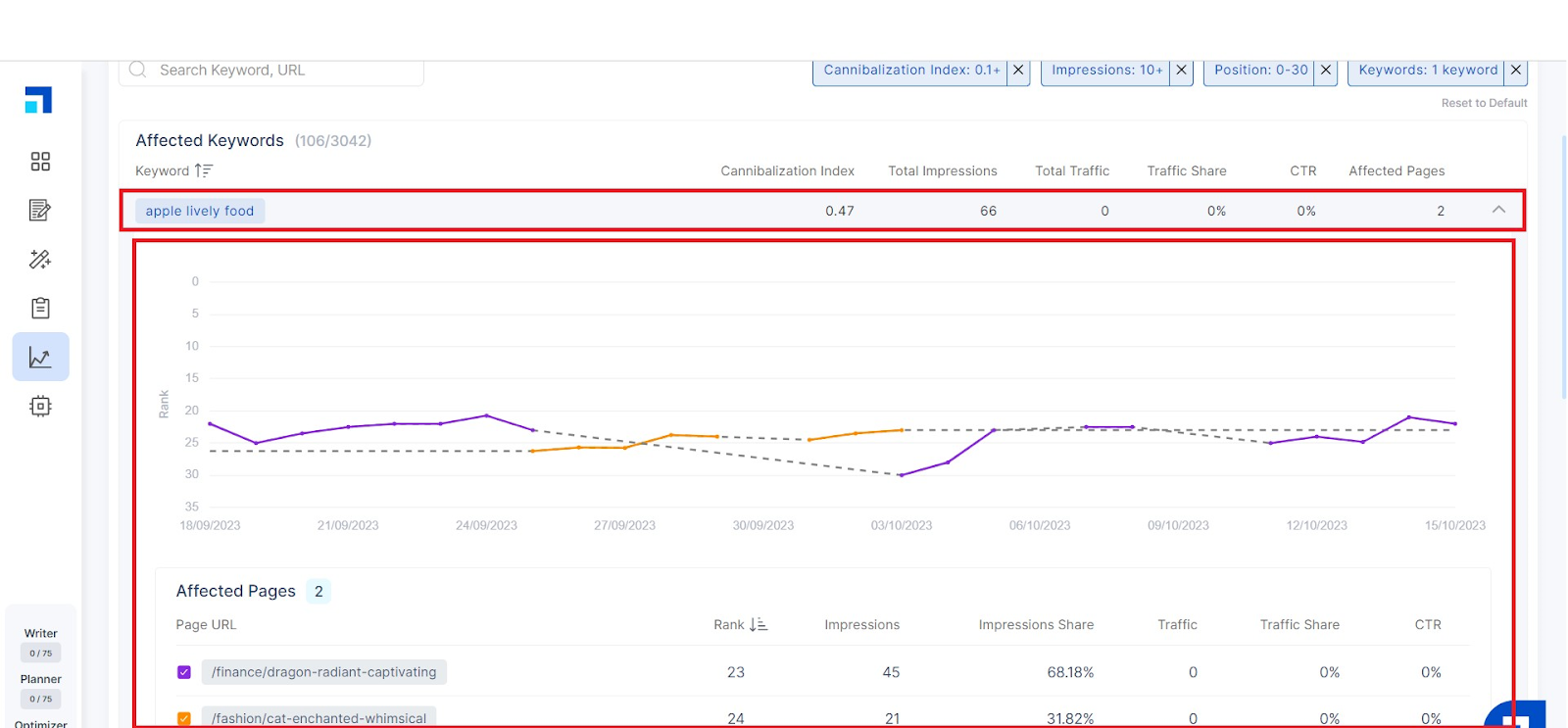
Here’s how the expanded view will look like -
The extended view shows a graph. It is a representation of different URLs and rank with respect to date.
You can select 5 Page URLs at a time.
This view also has the number of Affected Pages for the keyword, along with the Page URL, Rank, Impressions, Impressions Share, Traffic, Traffic Share and CTR.
To exit the extended view, simply click on the same arrow.
Quick Tip: You can also filter the Rank.
What to Do After Detecting Cannibalization
Once identified, here are a few ways to resolve cannibalization:
Merge Pages: Combine similar content into one comprehensive, high-authority page.
Differentiate Content: Adjust topics, keywords, or target audience to make each page unique and purposeful.
Use Canonical Tags: Tell search engines which version of a page should be prioritized.
301 Redirects: Redirect duplicate or weaker pages to the stronger, primary page.
Internal Linking Optimization: Guide search engines and users by linking related pages strategically.